Where to Find Every KPI in Shopify Analytics, Without an App
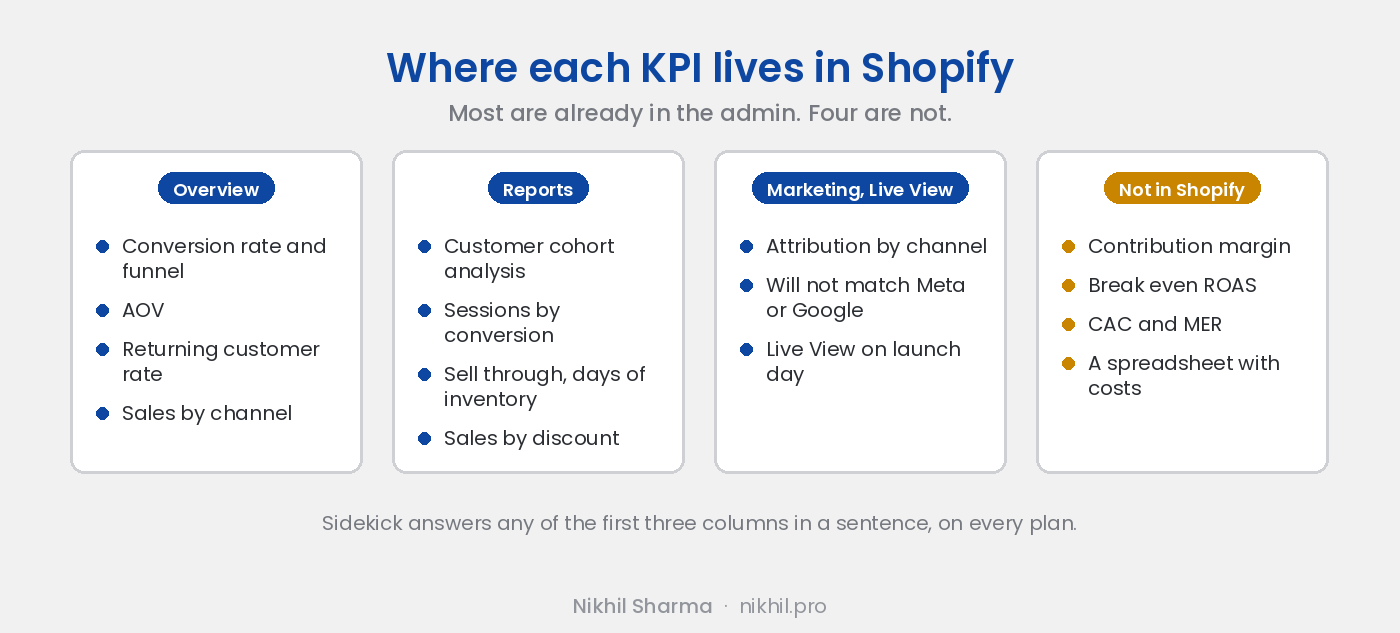
The KPIs post lists thirty numbers and explains why each one matters. The question that followed it, from more than one reader, was simpler: where are they. Most are already in the Shopify admin, no app required, and this is the map. The handful that are not are at the end, with what to do about them.
The Overview dashboard
Analytics, Overview is the page to look at weekly. Set the date range to the last 30 days with a comparison to the previous 30, and six of the numbers from the KPIs post are on it as cards.
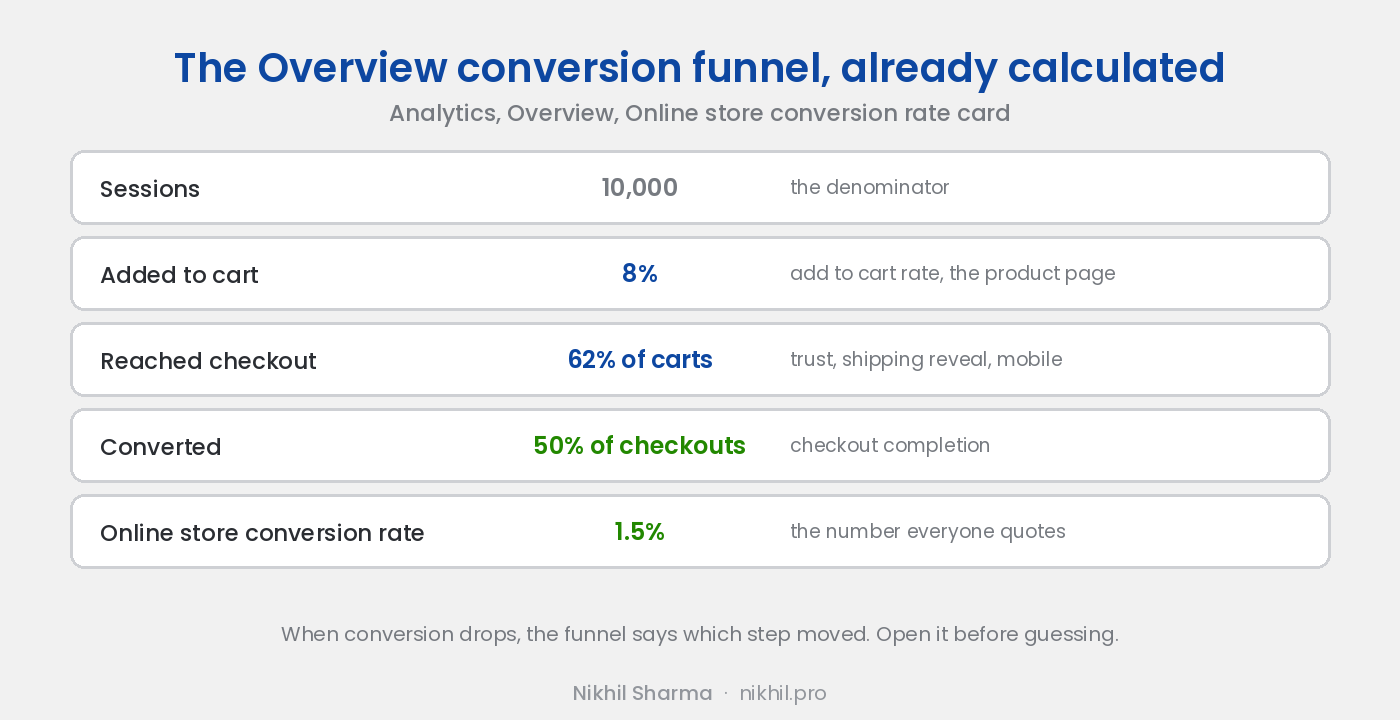
Online store conversion rate, with the funnel underneath it: sessions, added to cart, reached checkout, converted. The three steps are the add to cart rate and checkout completion rate from the KPIs post, already calculated. If conversion is down, the funnel tells you which step moved.
Average order value. The card, and the trend against the previous period.
Returning customer rate. The share of orders from customers who had ordered before. Under 20 percent and the store lives on acquisition; the flows post is the fix.
Total sales by channel, which is where you see Online store against POS, Shop app, and any marketplace.
Sessions by traffic source and by device. Not KPIs on their own, but the denominators. A conversion rate that fell because a new source sent worse traffic is a different problem from one that fell because the checkout broke.
Top products by units sold and, in the sales breakdown, returns. Refund rate by product is a sort away.
Reports: the ones worth opening
Analytics, Reports has more than a hundred. Five earn a bookmark.
Customer cohort analysis. Each row is the customers acquired in a month; each column is the share of them who ordered again in the following months. This is the retention curve, and it is the input to lifetime value. If the second column is under 15 percent, LTV is close to first order value and the business is an acquisition machine.
Sessions by conversion, by day and by source. The conversion rate card over time, split by where the traffic came from. Paid traffic converting under 1 percent while email converts at 3 is the signature of an ad or landing page problem rather than a store problem.
Sales by product with sell through rate. Which products move and which sit. Sell through is units sold over units available, and a low number on a product that ads are promoting is money leaving twice.
Days of inventory remaining and Average inventory sold per day. The stockout warning. A product with eleven days left and a campaign that just scaled is the thing to know on Monday, not when the customer emails.
Sales by discount. Which codes are used, how much they cost, and whether the first order discount is being used by returning customers, which it usually is.
The standard reports are on every plan. Building custom reports with your own columns and filters needs Advanced or Plus; most owners never need one.
Marketing: attribution, with a warning
Analytics, Marketing attributes sessions and sales to the channel and campaign that brought them, from UTM parameters and the connected channel apps. It is the one place inside Shopify that puts Meta, Google and email side by side on the same rules.
It will not agree with Meta’s dashboard or Google’s. It uses its own attribution model and only sees the clicks that landed on the store, while the platforms count views and claim generously. That disagreement is not a bug. The KPIs post covers why marketing efficiency ratio, total revenue over total spend, is the number to run budgets on, and the Shopify marketing report is half of that calculation.
Live View, for launch day
Analytics, Live View shows visitors on the site right now, where they are, what they are adding to cart, and sales as they land. Useless day to day and the right screen for the first hour of a campaign or a drop, when you want to know whether the checkout is holding.
Sidekick, for the questions
Every number above can be asked for in a sentence. Sidekick sits in the admin on every plan: “Which products had the most refunds in September?” “How did conversion rate change the week after 1 October?” “What was returning customer rate on the Shop app versus the online store last month?” It reads the same data as the reports and saves the clicking, and it is the first thing to try before connecting an AI assistant to the store.
What Shopify cannot show you
Four of the numbers that decide whether the store makes money need costs Shopify does not hold: ad spend, packaging, shipping you paid, payment fees. So contribution margin per order, break even ROAS, customer acquisition cost and marketing efficiency ratio are not on any Shopify screen.
They are a spreadsheet. Revenue and orders from Shopify, spend from the ad platforms, product cost from Shopify if you have entered it, shipping from the carrier invoice. One row a month, four formulas, and it is the most important page in the business. The KPIs post walks through the arithmetic on a $60 order, and automating that sheet so it fills itself on Monday is a weekend’s work.
When a dashboard is worth it: Looker Studio and Power BI
Everything above lives in six tabs of the Shopify admin plus a spreadsheet. For most stores under a few million a year that is the right amount of tooling, and a dashboard would be a thing that gets built and stops being opened. Three situations change that.
More than one person needs the same view every week and they do not all have admin access, or should not. The numbers come from four systems and someone is copying between them. An investor, a board or a partner wants a page, not a login.
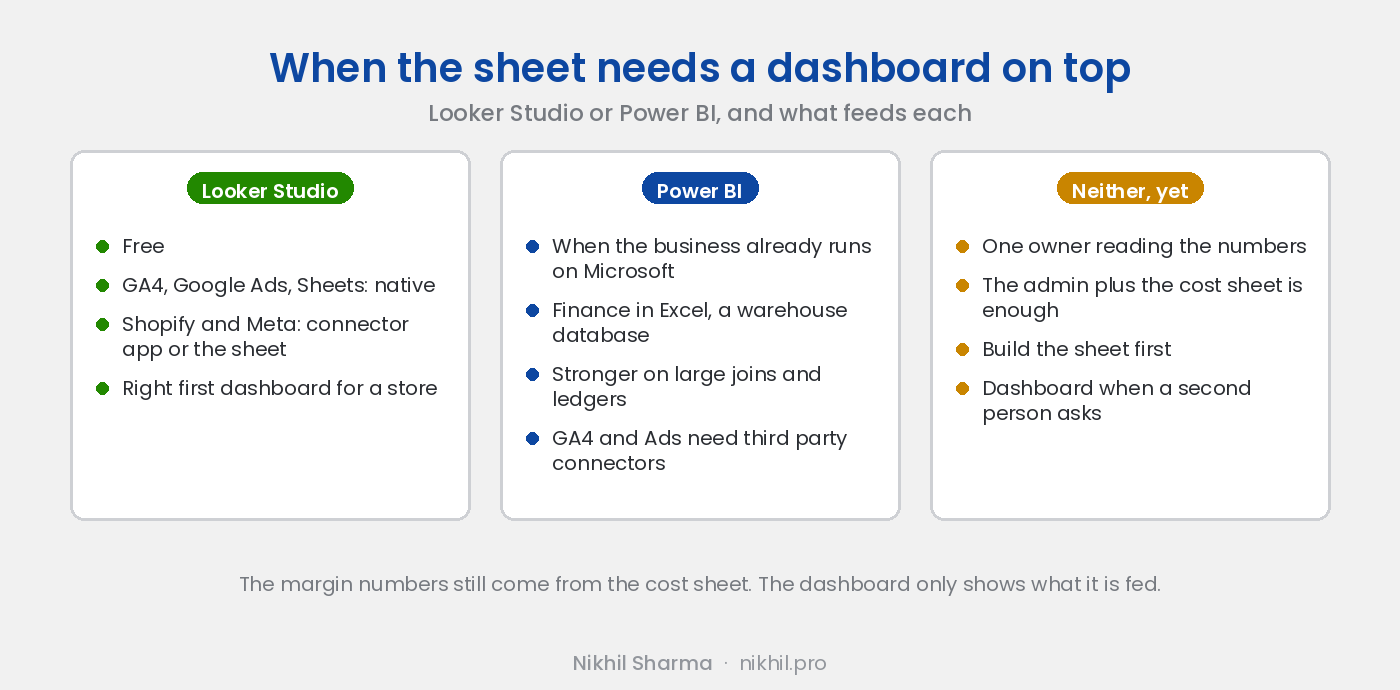
Looker Studio is free and is the right first dashboard for a Shopify store, for one reason: GA4 and Google Ads connect natively in two clicks, and a Google Sheet is a native source too. Shopify itself has no Google connector, so the store data arrives one of two ways: a paid connector app from the Looker Studio partner gallery, around $20 to $50 a month for one source, or the sheet from the weekly report, which already holds orders, revenue and the margin columns and costs nothing. Meta is the same choice, connector or sheet. For a store that already runs the sheet, the dashboard is a Looker Studio page on top of it, and it takes an afternoon.
Power BI is the answer when the business already runs on Microsoft: a finance team in Excel, a warehouse system with a SQL database, someone who already builds Power BI reports for something else. It is better than Looker Studio at joining large tables and at anything with a ledger in it, and worse at the quick marketing view, because GA4 and Google Ads need third party connectors there too. If nobody on the team has opened Power BI, do not start with it for the store.
What neither solves. The dashboard shows what it is fed. The four margin numbers still come from the cost sheet, the Meta and Shopify attribution will still disagree in the dashboard exactly as they do in the admin, and a dashboard nobody reads is more expensive than a report that arrives. Build the sheet first. Put a dashboard on it when more than one person asks for the view.
What to look at, and when
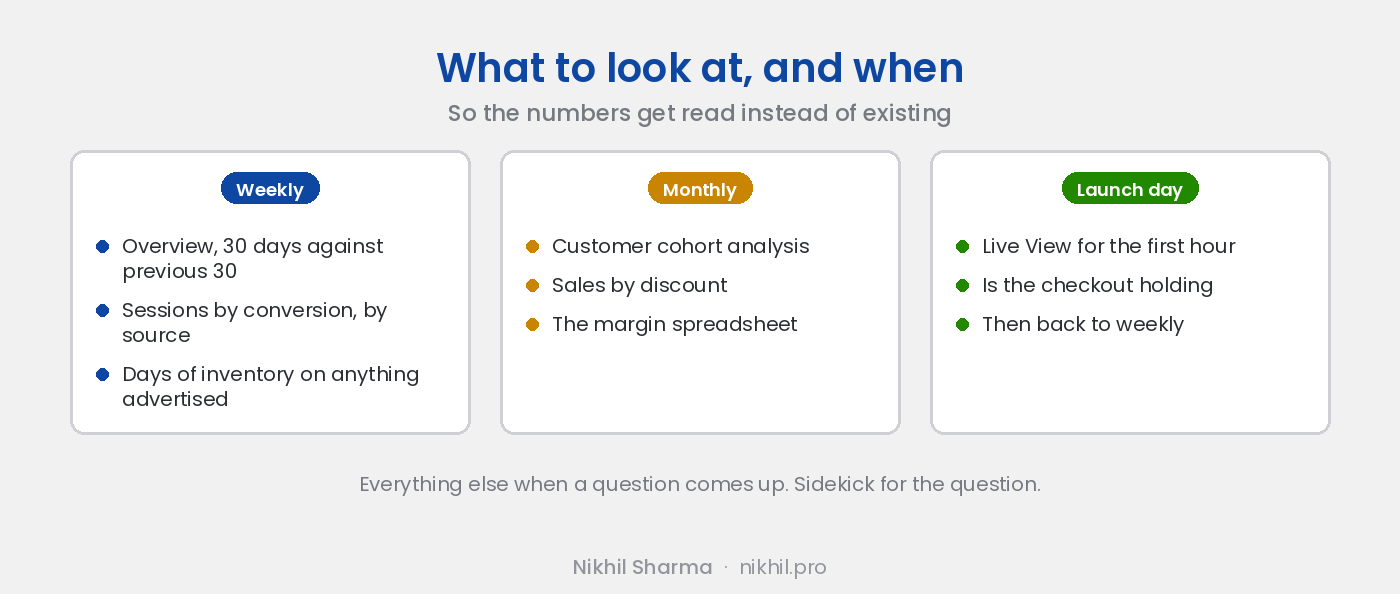
Weekly: the Overview with a 30 day comparison, the sessions by conversion report by source, days of inventory on anything being advertised. Monthly: cohort analysis, sales by discount, the margin spreadsheet. Launch day: Live View. Everything else, when a question comes up, and Sidekick for the question.
If the numbers are there and the problem is that nobody looks, that is not a reporting problem, it is a Monday morning problem, and a sheet that writes itself is the fix.
Frequently asked questions
Where is conversion rate in Shopify?
How do I see returning customer rate in Shopify?
Can Shopify show marketing attribution?
Does Shopify show inventory days remaining?
Do I need Advanced Shopify for reports?
What can Sidekick answer about my store's numbers?
Should I use Looker Studio or Power BI for Shopify reporting?
Which KPIs does Shopify not show?
Get new posts in your inbox
Occasional notes on Shopify, paid ads, and what I learn. No spam.
Thanks — check your inbox to confirm.

Nikhil Sharma
I run data and operations for a DTC brand on Shopify, consult on Meta and Google Ads, and build AI automations for ecommerce teams. I write about what I build and run.