Calendly Conversion Tracking for GA4, Google Ads and Meta Ads
You embedded Calendly on your site. You’re running Google Ads or Meta Ads to that page. The clicks come in. The bookings happen. But your ads platform shows zero conversions.
That’s because most Calendly tracking guides tell you to set up a thank-you page. Users close the tab before it loads. You miss most of your actual bookings.
Here’s the setup I actually use. Works for GA4, Google Ads, and Meta Ads. Works for Tally too. No thank-you page needed.
Done for you, same day
Calendly conversion tracking setup, $199
GA4, Google Ads and Meta wired to your Calendly or Cal.com bookings, tested with a live booking, with a short note on what was changed. One hour on a call with your accounts open. Tally forms included if you use them.
If bookings are only part of the problem
Tracking audit across the stack
Calendly is usually the symptom. I check GA4, Google Ads, Meta pixel and Conversions API, and Shopify if you sell, reconcile what each one reports against what actually happened, and hand you the list of what is wrong in order. Scoped on a call first.
Prerequisites
-
Calendly Standard, Teams, or Enterprise plan (Google Analytics integration required)
-
Active Google Analytics 4 (GA4) property
-
Active Google Ads account
-
Admin access to all three platforms (Calendly, GA4, and Google Ads)
Calendly Google Analytics integration: GA4 first
Step 1: Setup Calendly with Google Analytics
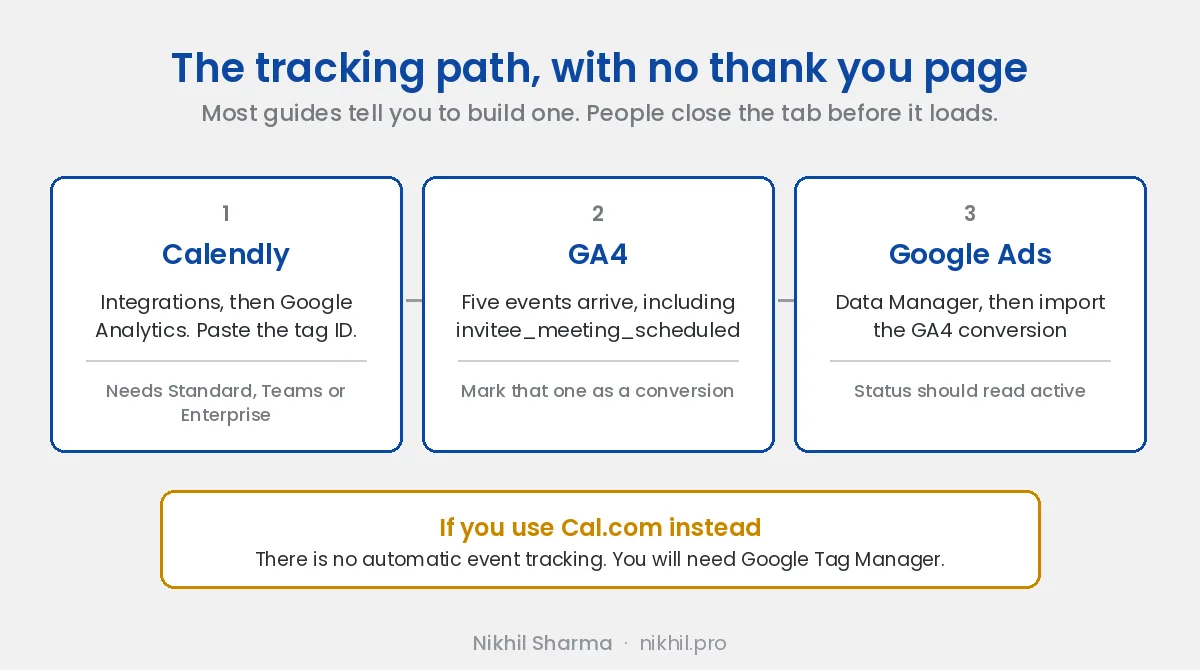
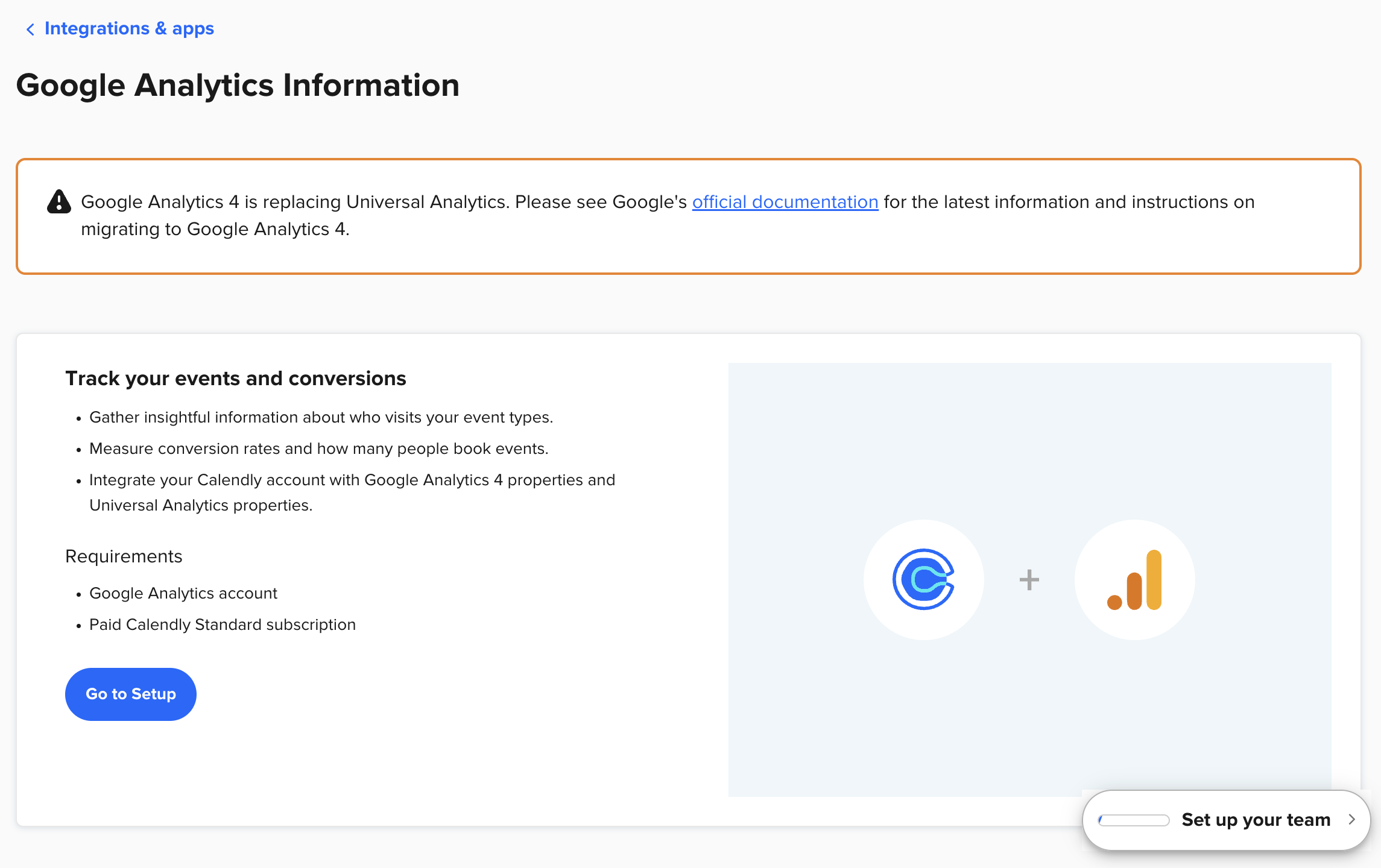
Go To Calendly > Integrations > Google Analytics and when you’re here, you need to enter your Google Tag ID, which you’ll obtain from your Google Analytics dashboard.
Step 2: Verify Calendly is linked to Google Analytics
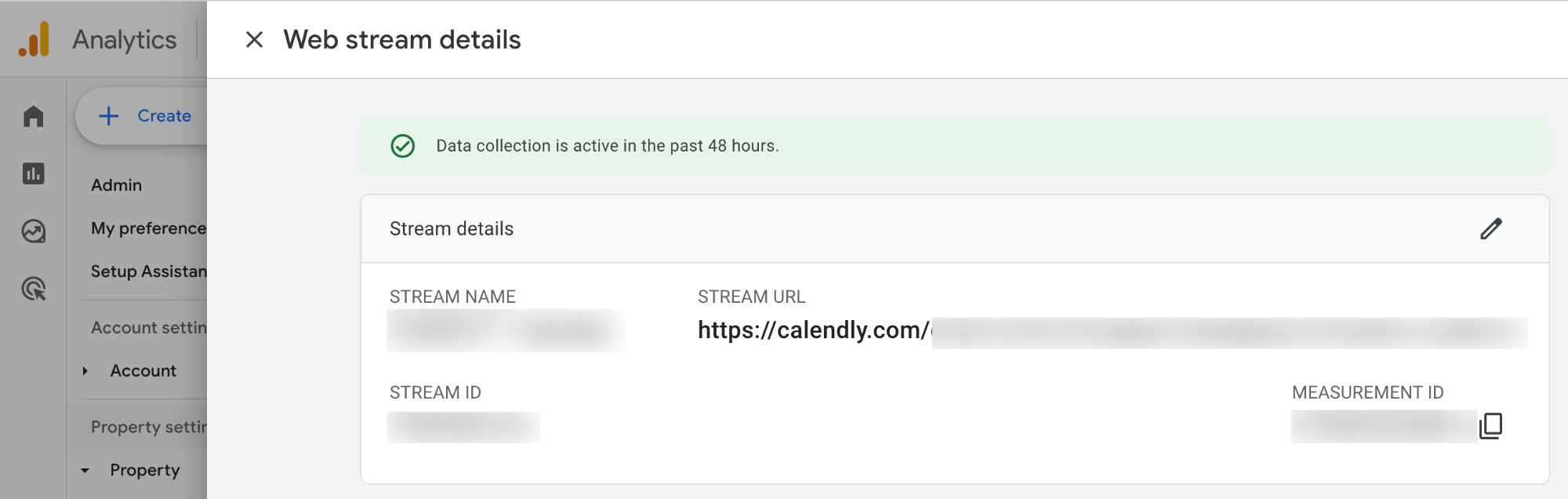
Go to Google Analytics > Admin > Data Collection and Modification > Data Streams and ensure it indicates ‘Data collection is active in the past 48 hours.‘
Step 3: Verify Calendly Events on Google Analytics
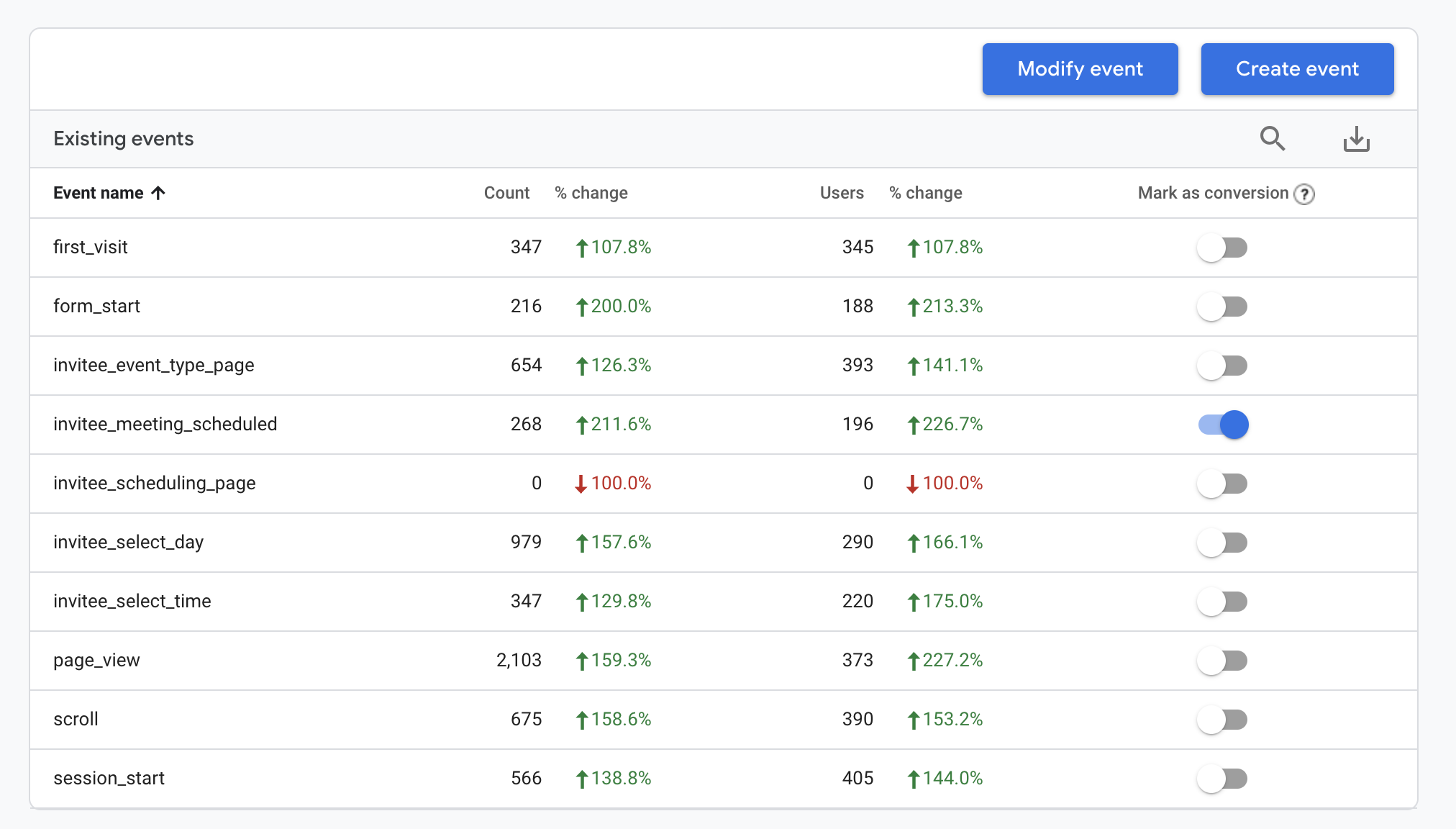
Now, go to Google Analytics > Admin > Data Display > Events.
Calendly has five important events that we need to focus on, and you have to ensure that the following events appear on the events page.
-
invitee_event_type_page
-
invitee_meeting_scheduled
-
invitee_scheduling_page
-
invitee_select_day
-
invitee_select_time
Don’t worry if they don’t show up immediately, as it takes some time for the events to appear. Just make sure that you trigger the events by scheduling a meeting after setting up Google Analytics.
We have to focus on the invitee_meeting_scheduled as this is the last page which also means that the meeting has been scheduled, and we only want to track the scheduled meetings.
Step 4: Set Calendly Event as ‘Conversion’ on Google Analytics
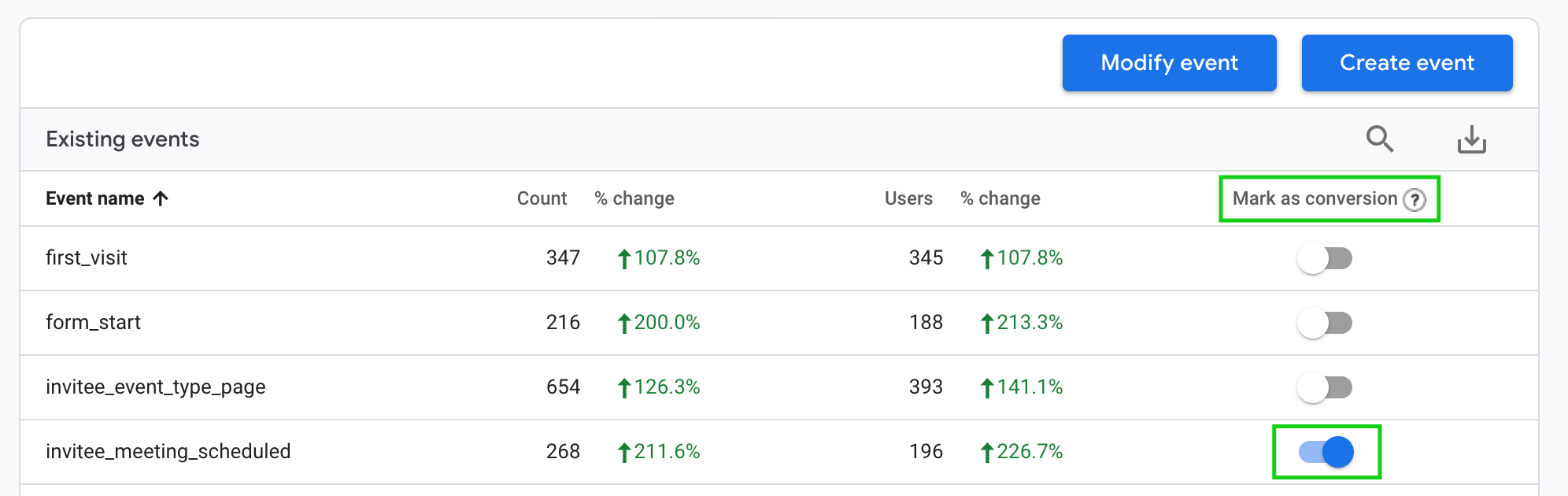
Once you see the Calendly events in Google Analytics, you need to set “invitee_meeting_scheduled” as a conversion by checking the checkbox next to it.
That’s it for Google Analytics.
Now, let’s move on to Google Ads and connect Google Analytics with Google Ads.
Importing Calendly events into Google Ads
Step 1: Connect Google Analytics 4 to Google Ads
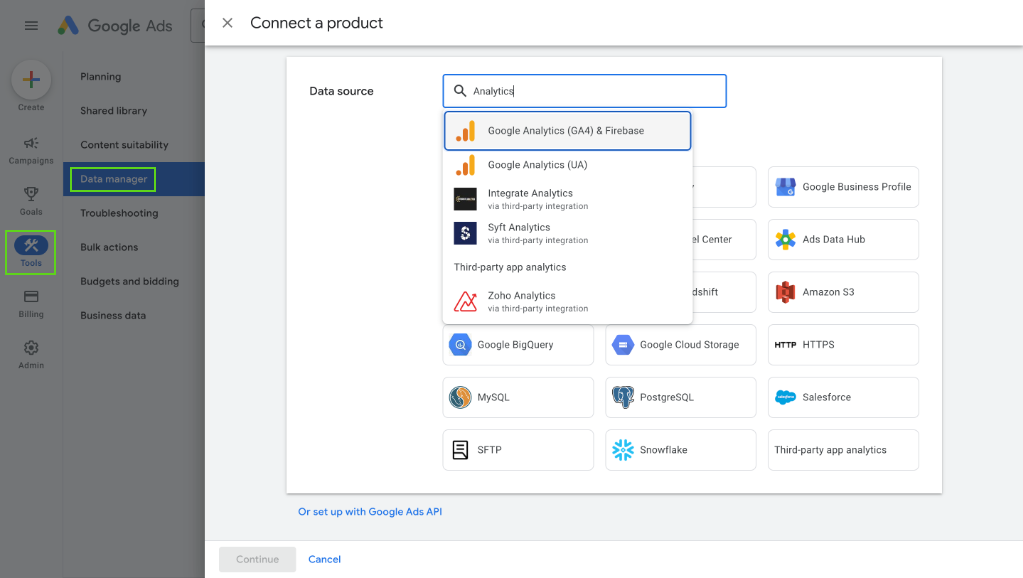
Go to Google Ads > Tools > Data Manager > Connect a Product and connect your Google Analytics 4 with Google Ads, this has your invitee_meeting_scheduled that we will need later on.
Step 2: Import Calendly Events to Google Ads
To Import Calendly events to Google Ads, go to Google Ads > Goals > Summary
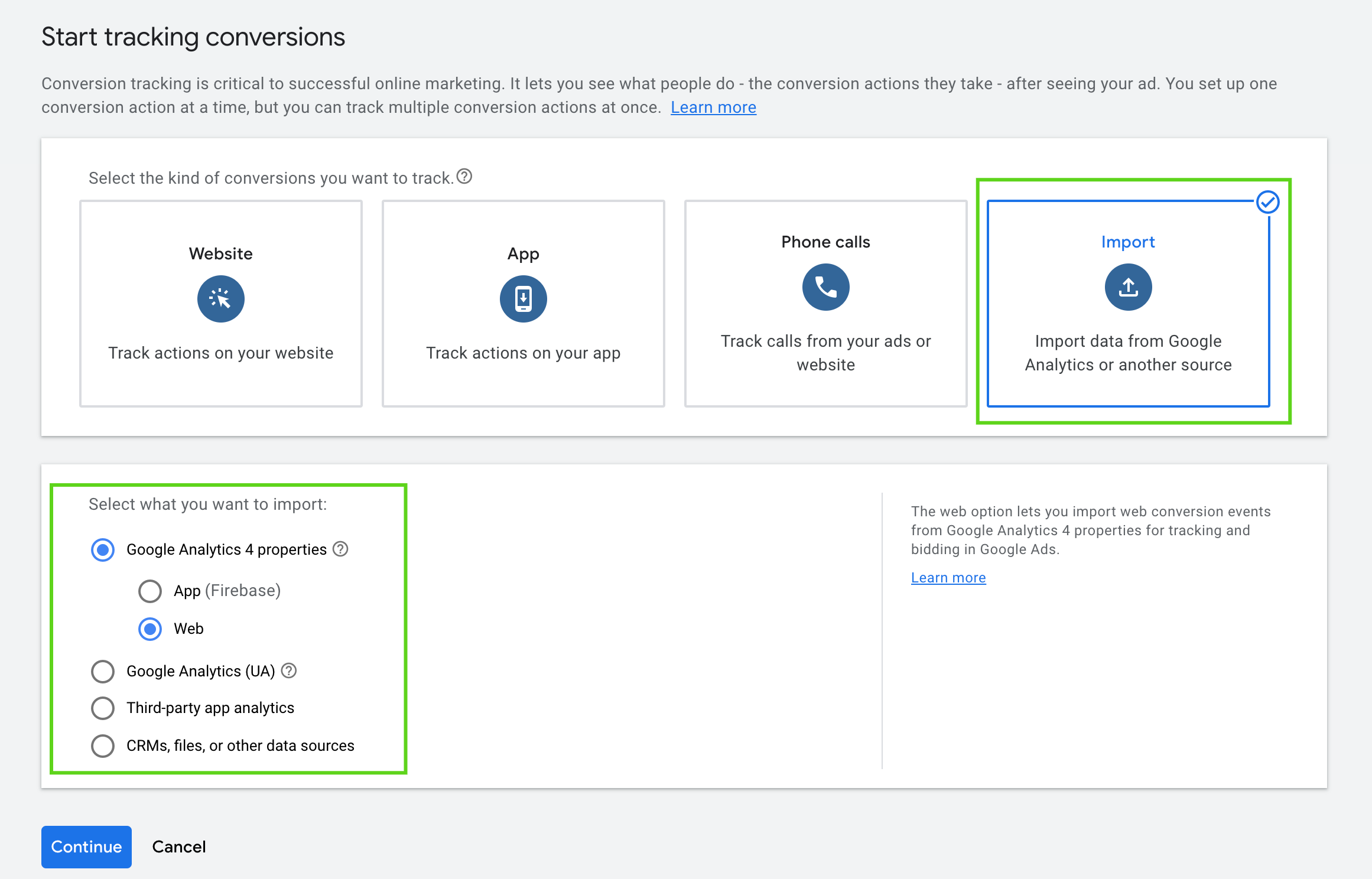
Click on ‘New conversion action,’ then click on ‘Import’ to import data from Google Analytics or other sources. Select Google Analytics 4 properties, then ‘web’.
Here, you will see the Google Analytics event called invitee_meeting_scheduled that we marked on Step 3.
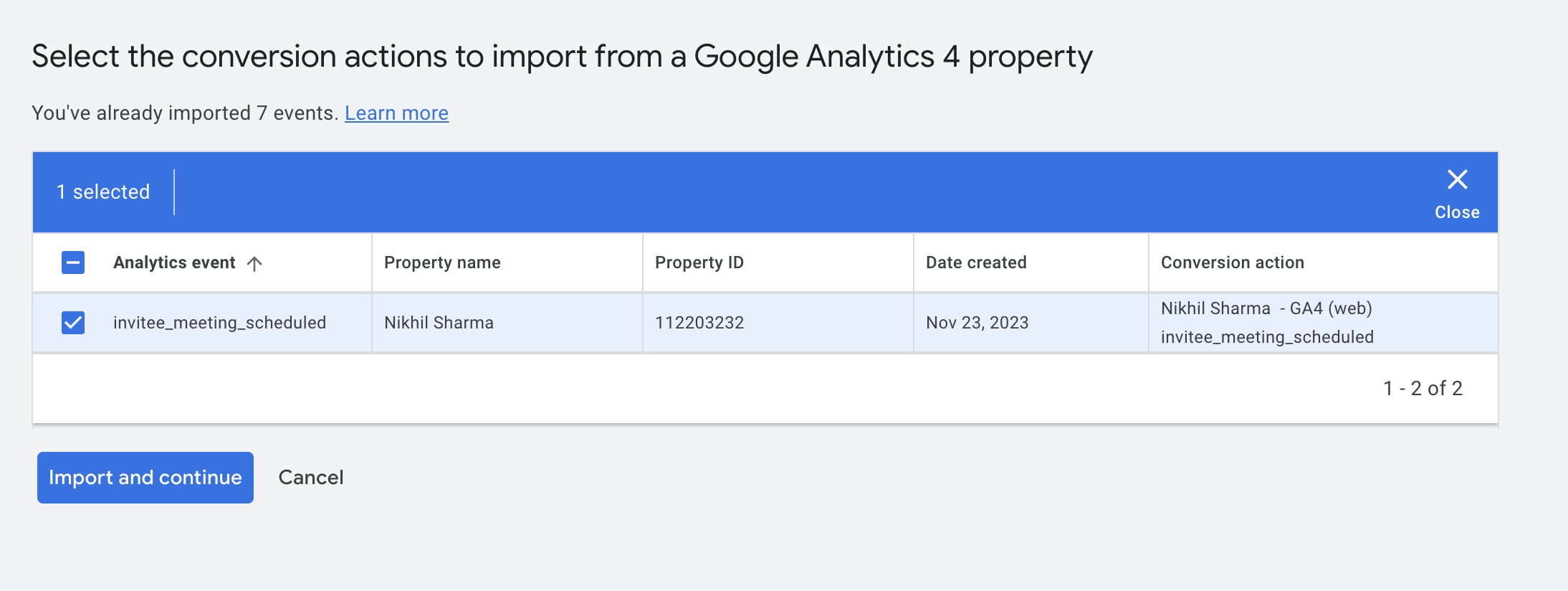
Click on Import and continue.
Step 3: Verify Calendly Event on Google Ads
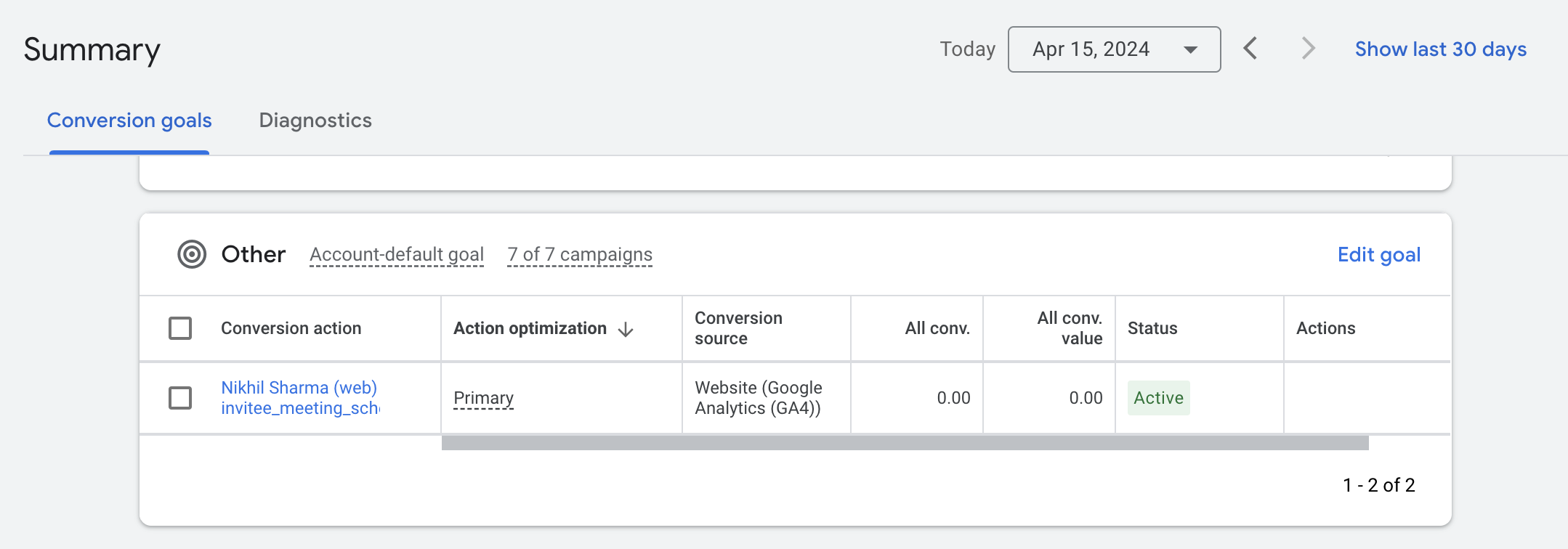
To verify Calendly event on Google Ads, just go to Google Ads > Goals > Summary and you will see the imported invitee_meeting_scheduled event and the status will be active.
This means your Calendly event is setup and ready to track calendar meetings.
Tracking Calendly bookings in Meta Ads
The Google side is done. Meta needs its own event, because Meta does not read GA4.
In Calendly, Integrations, Meta Pixel, paste the pixel ID from Events Manager. Calendly then fires an event to the pixel when a booking is confirmed, from inside the widget, so it does not depend on a thank you page either. In Events Manager, create a custom conversion on that event, give it a value if a booked call has one for you, and set the campaign to optimise for it.
Browser side pixels miss a share of events on iPhones and behind ad blockers. If booked meetings are the only conversion in the account, make it reliable: a Zapier or Make step that takes the Calendly booking and posts it to Meta’s Conversions API, with the invitee’s email hashed, gives Meta the server side copy. Deduplicate the two with the same event ID, which the Meta tracking post covers.
Not on Calendly?
The same idea, catch the booking where it happens and skip the thank you page, works for the other tools, each with its own event:
- Cal.com: the embed fires
bookingSuccessful; Tag Manager does the rest. - HubSpot meetings: the embed posts
meetingBookSucceededto the host page, and HubSpot keeps the click ID for offline conversions later. - Tally forms: the embed posts
Tally.FormSubmittedwith the form ID, so each form can be its own conversion.
That’s it. Now you can run ads and see the Calendly bookings as conversions in GA4, Google Ads and Meta.
If you would rather not do it yourself, the $199 setup at the top of this post is the same work done on a call with your accounts open, tested with a live booking before we hang up.
This is the tracking behind the real estate lead generation case study, where booked meetings rather than purchases were the conversion. Once the events are flowing, the Performance Max page covers what to do with them on the Google side.
Frequently asked questions
How do I track Calendly bookings in Google Analytics 4?
How do I track Calendly conversions in Google Ads?
Can I track Calendly bookings in Meta Ads?
Why does my Calendly thank you page miss conversions?
Does this work with Calendly embedded on my site?
Can I track Cal.com the same way?
What Calendly plan do I need for conversion tracking?
Get new posts in your inbox
Occasional notes on Shopify, paid ads, and what I learn. No spam.
Thanks. Check your inbox to confirm.

Nikhil Sharma
I run data and operations for a DTC brand on Shopify, consult on Meta and Google Ads, and build AI automations for ecommerce teams. I write about what I build and run.